When you first start a project, you have the option to “start with AI”. You can specify here:
Your initial prompt - this will be used to generate your sitemap
How many pages you want the wireframe created for
It is important to keep this initial prompt focused on a structural level approach.
Later, you will specify styling and designs, if you want.
For now - make sure you give the AI enough instructions to understand how to create the sitemap and some of the initial sections for the pages you want it to start with.
AI Chat
When you are in the Layout view and the Design view you have a blue button on the left that pulls up the AI Chat.
Here’s how it looks:
In Layout View:
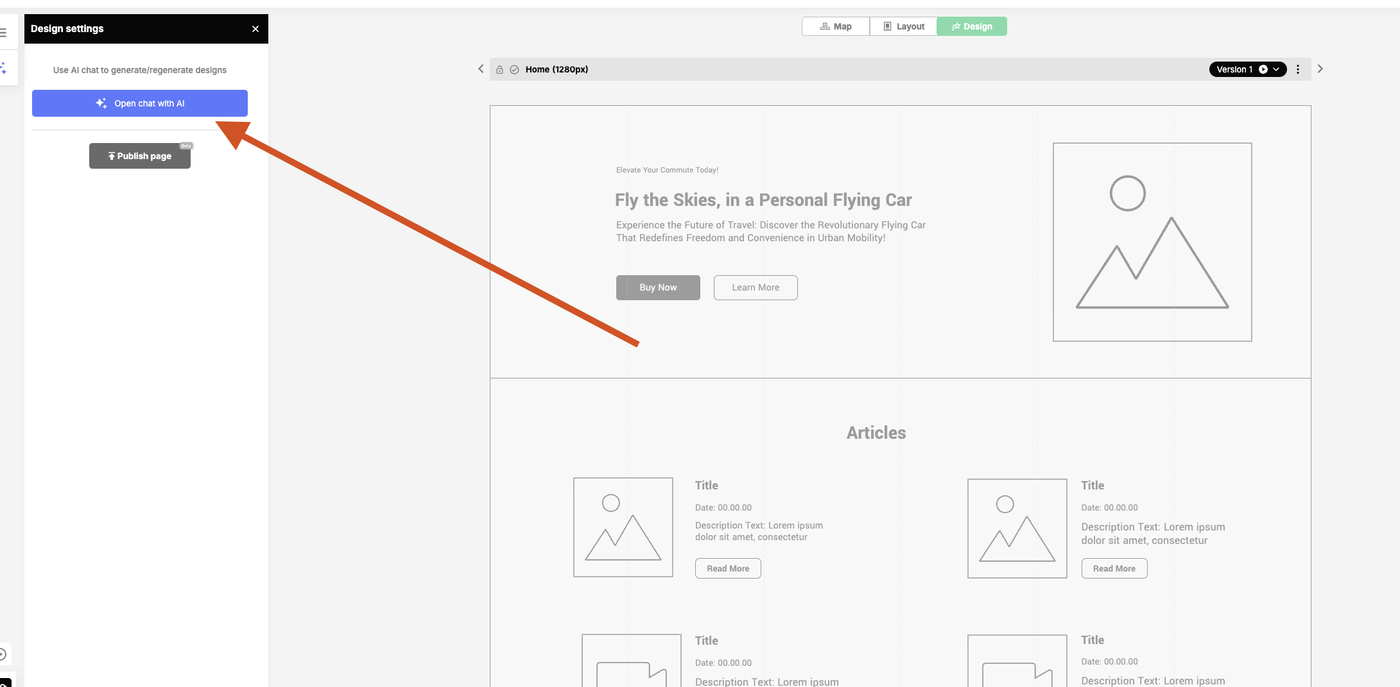
And in Design View:
You can ask the AI to generate content or designs for you.
It is important to note that you must be controlling the right part of your layout/design to make the changes.
If you want to make changes to your design - go to the design tab to do it, open the chat, and you will see design on the bottom of the chat. This is how you know you are chatting about the design. Your instructions will affect the design that is generated.
If you want to make changes to your layout you have two options.
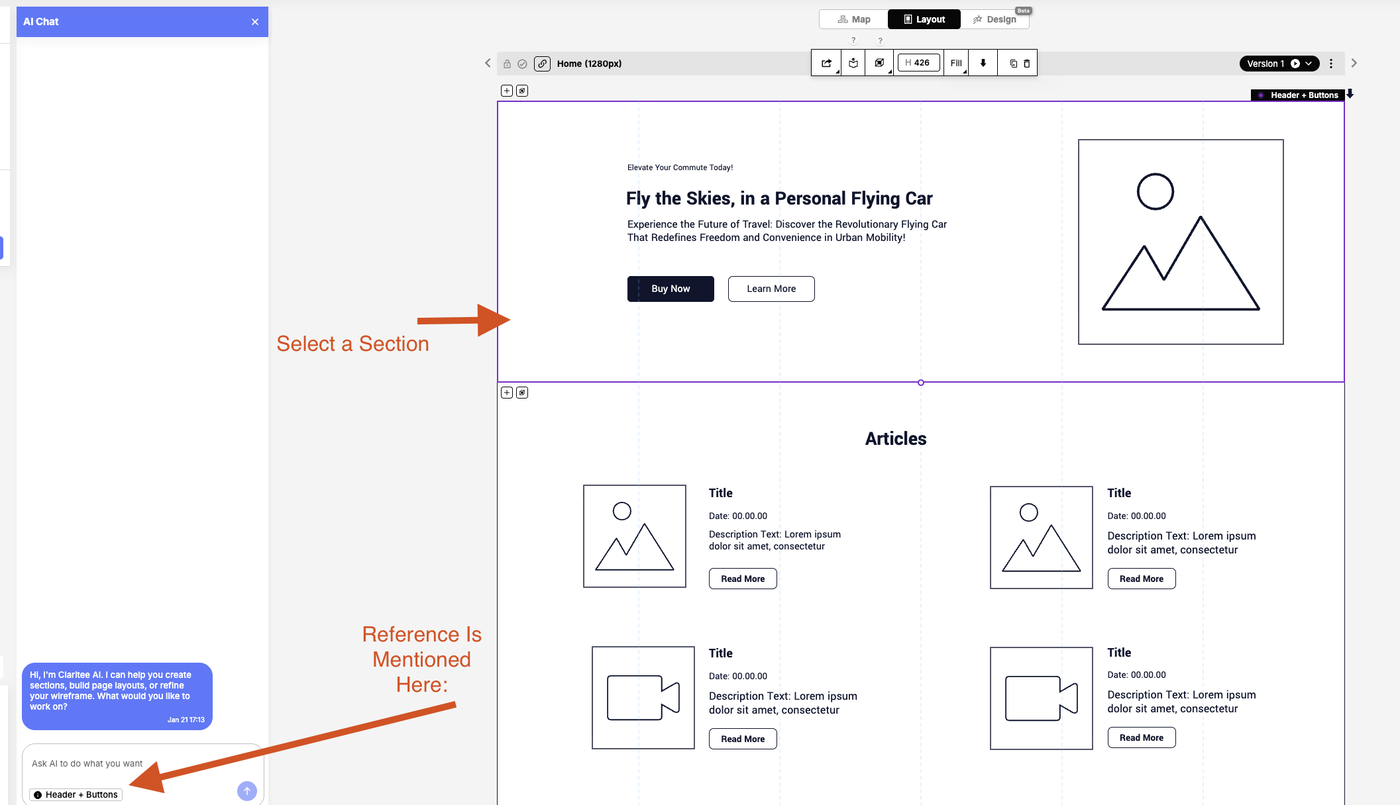
Make changes to the whole page. In this case, do not select a specific section (click the darker gray area of the canvas to remove any current selection). You will see at the bottom of the chat the text “Full Page”. This means your instructions will generate or re-generate a layout and text for the whole page, including deleting any previous work you may have done on that page.
Make changes to just a single section. In this case, select a section first. You will see in the AI chat at the bottom the text with the name of the section. This means your instructions will affect just that section.